How It Works
From institution setup to a live Kahoot quiz and progress reports — walk through Türkçe Okulu step by step, with real screenshots.
Institution Setup
Registering a new country, school or institution takes just a few steps as a Super Admin or Country Representative.
- 1
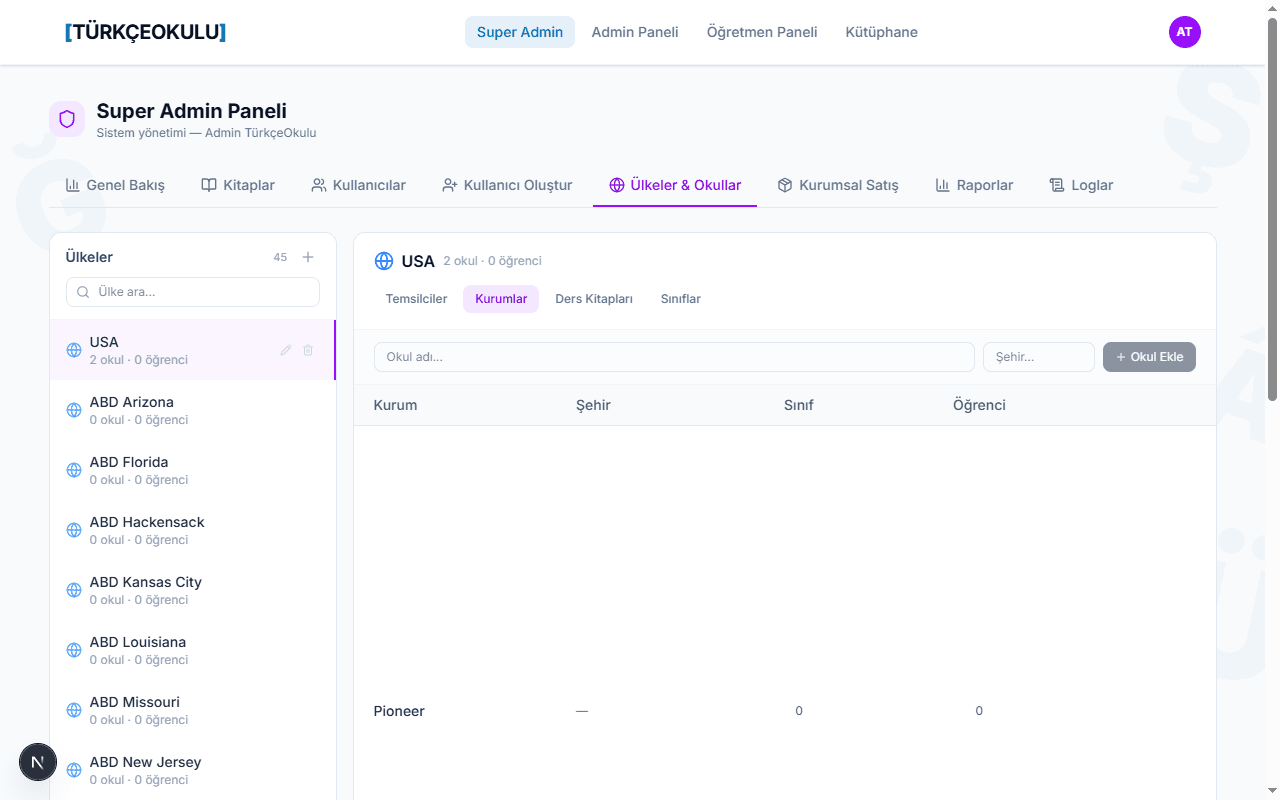
Open the "Countries & Schools" tab.
- 2
Pick a country from the list on the left — the Representatives, Institutions, Textbooks and Classes tabs for that country open on the right.
- 3
Use "Add School" to create a new institution record.
- 4
Use the "Create User" tab to open a teacher or admin account — choose the role and the country/institution scope.
Purchase & License Activation
From a school's demo request to a paid license, the process passes through a few roles — moved along by invite links, paid by bank transfer.
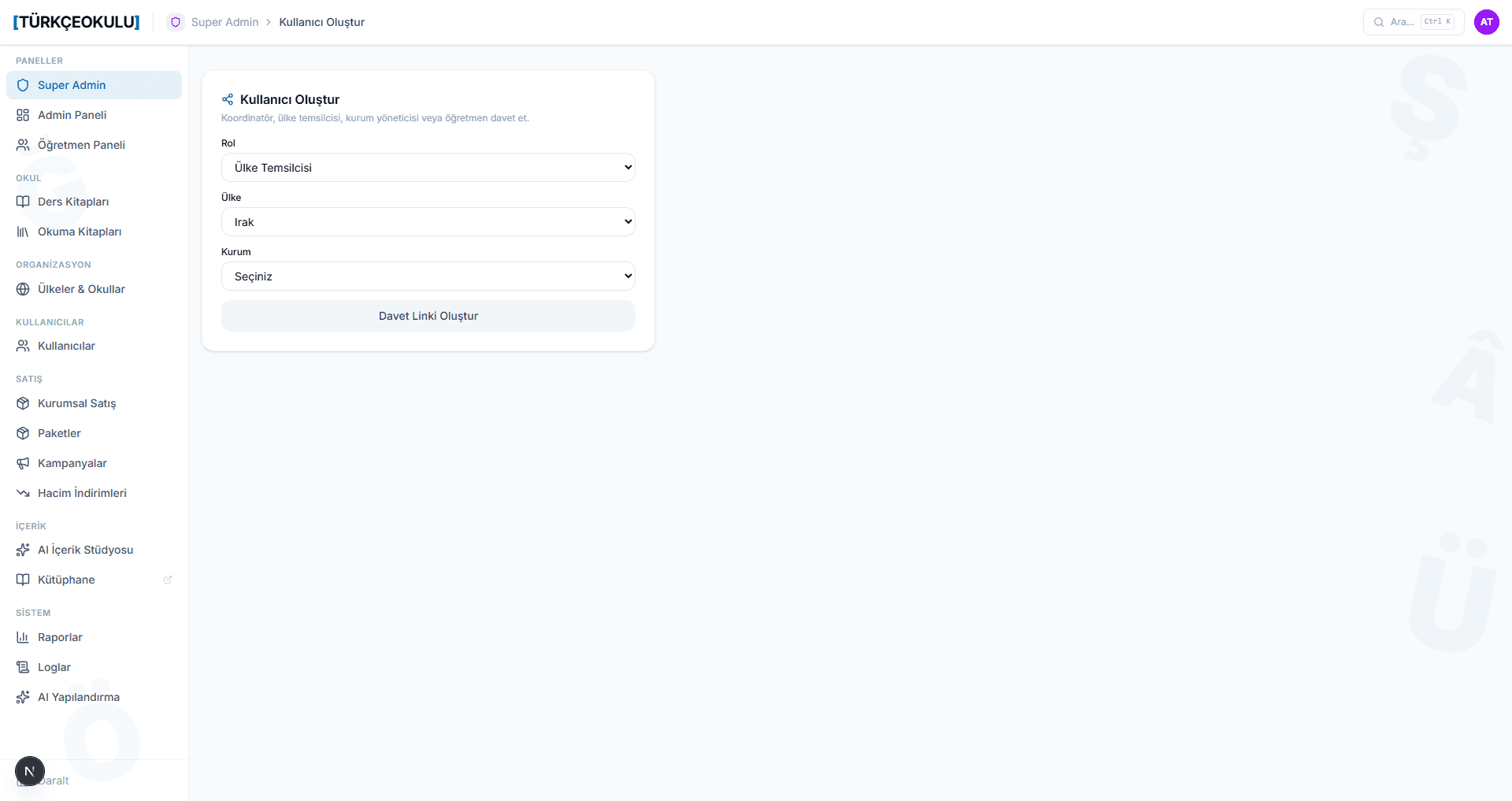
The Super Admin creates a Country Representative invite link from the "Create User" screen for a country; the representative opens their own account with the link.
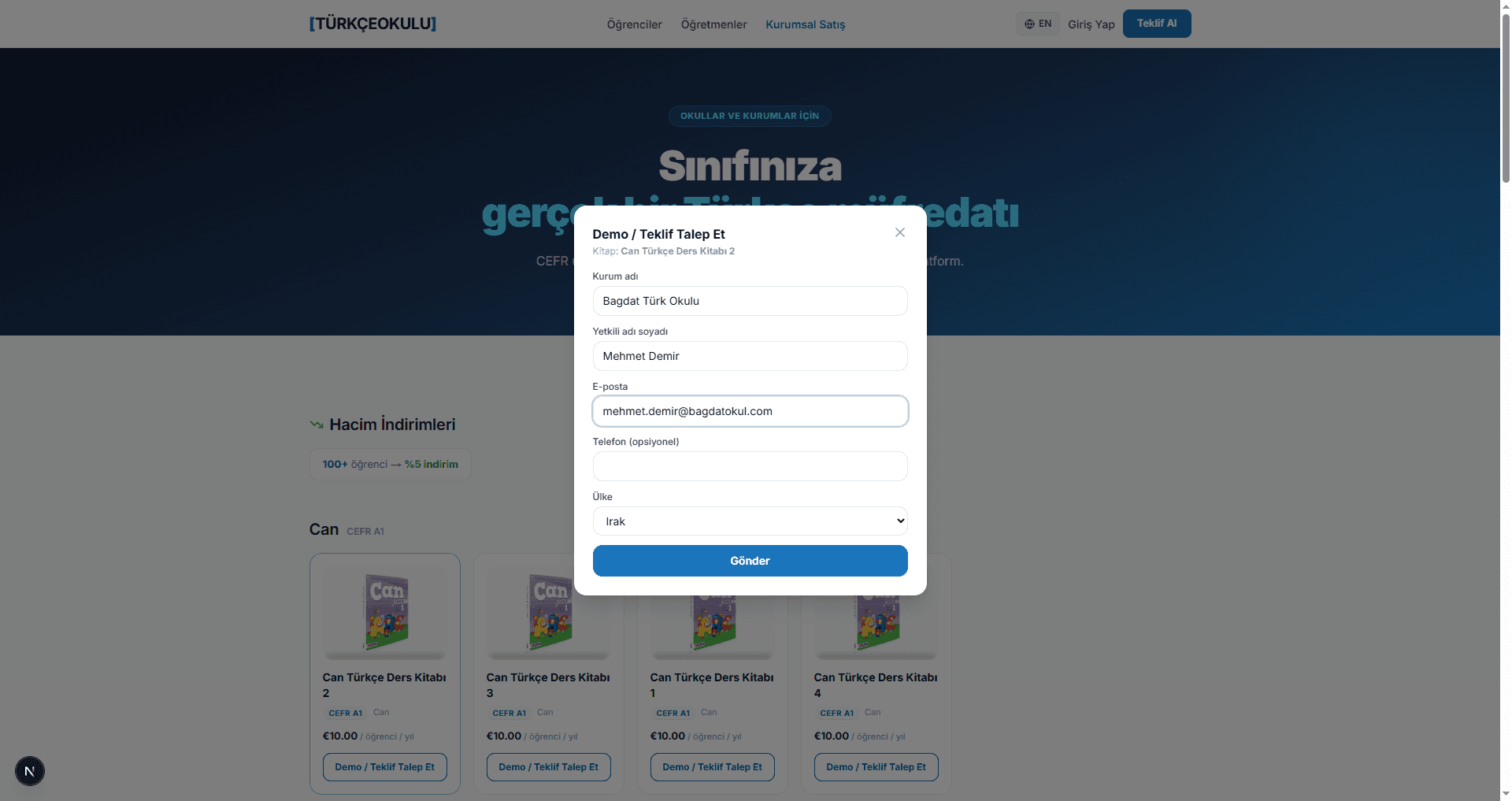
A school fills out the "Request Demo / Quote" form for a textbook on the Corporate Sales page. Payment is by bank transfer; the sales team follows up within 48 hours.
The Country Representative converts the request that appears in their panel into an institution via "Convert to Institution" — this automatically opens a trial license.
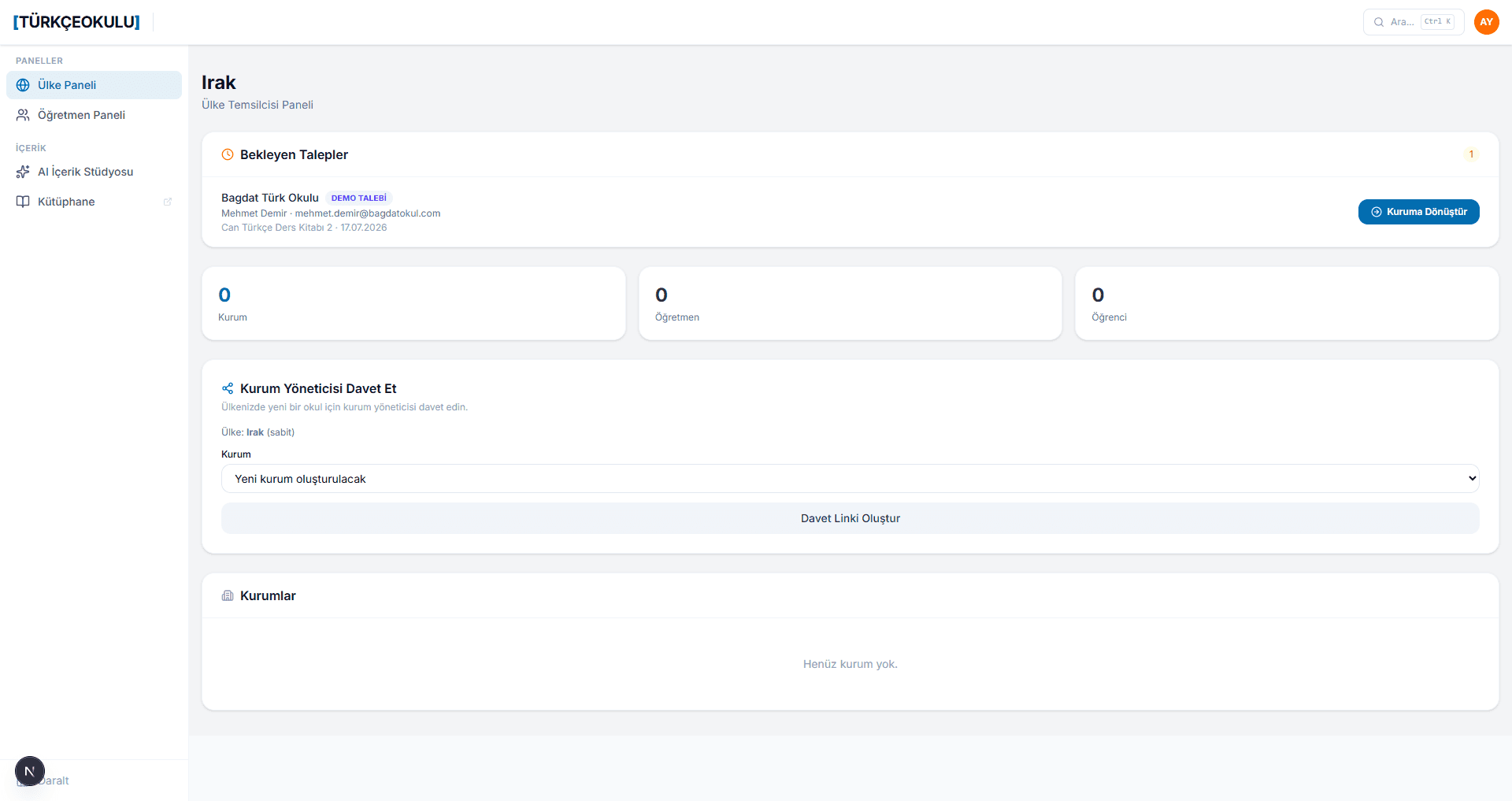
From the same panel, they generate an Institution Admin invite link scoped to that school; the admin opens their account with the link and invites their own teachers.
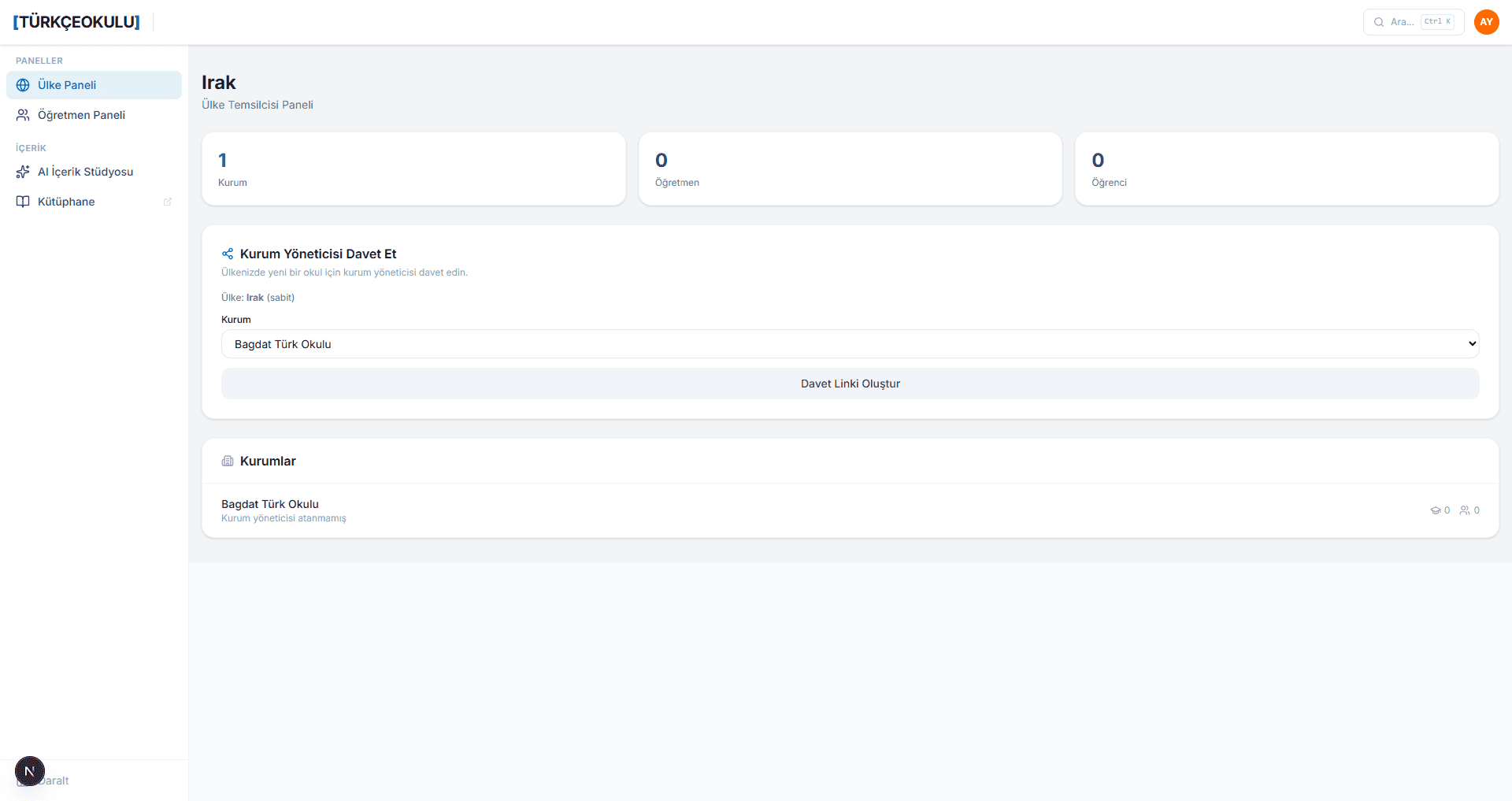
The Institution Admin clicks "Purchase" on the Licenses tab for a book still on a trial license — the request moves to "Under Review".
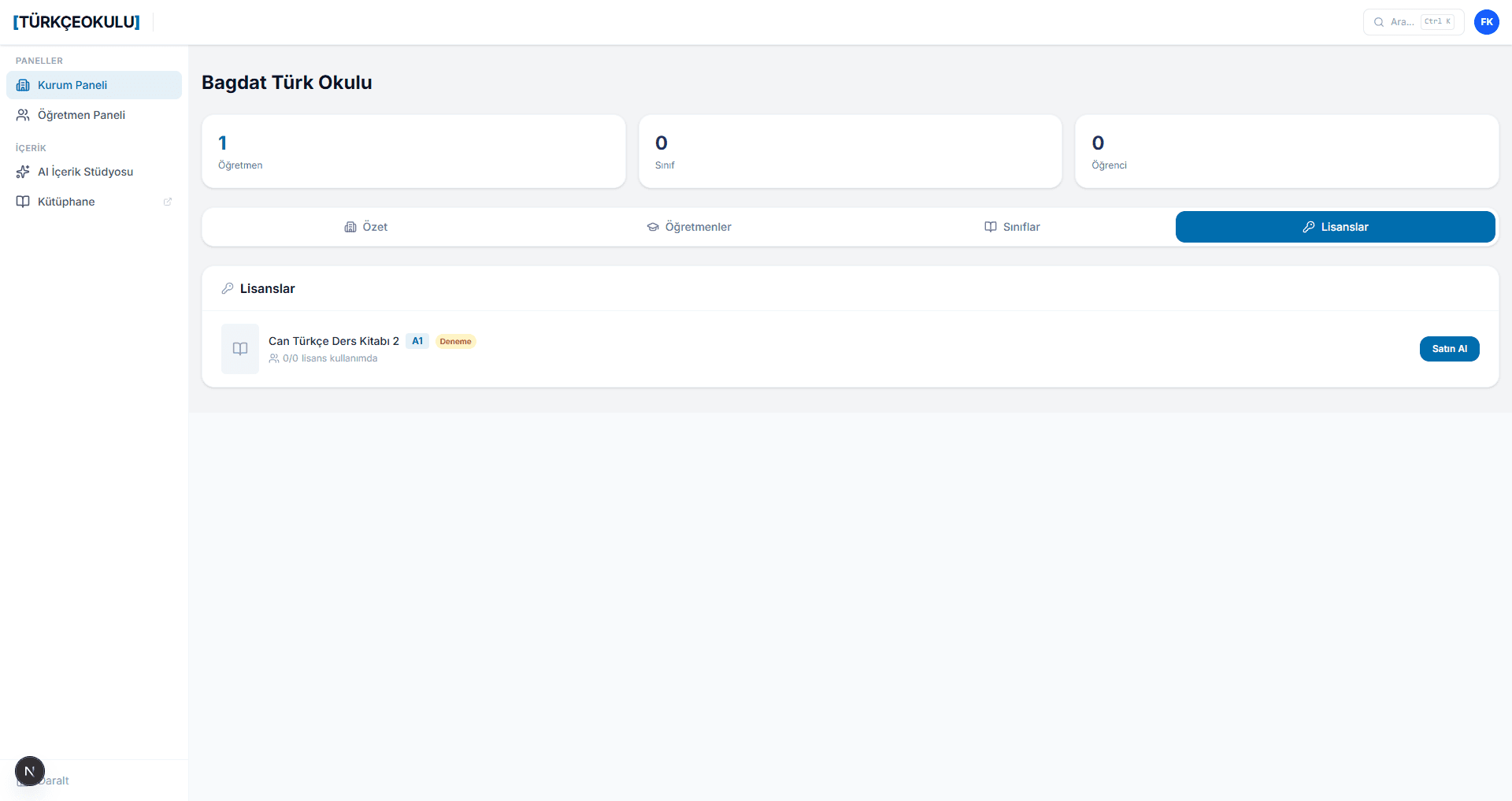
Once the bank transfer arrives, the Super Admin confirms the capacity/amount in Corporate Sales → Orders and clicks "Approve"; the license switches to Paid immediately and shows as active on the institution admin's screen.
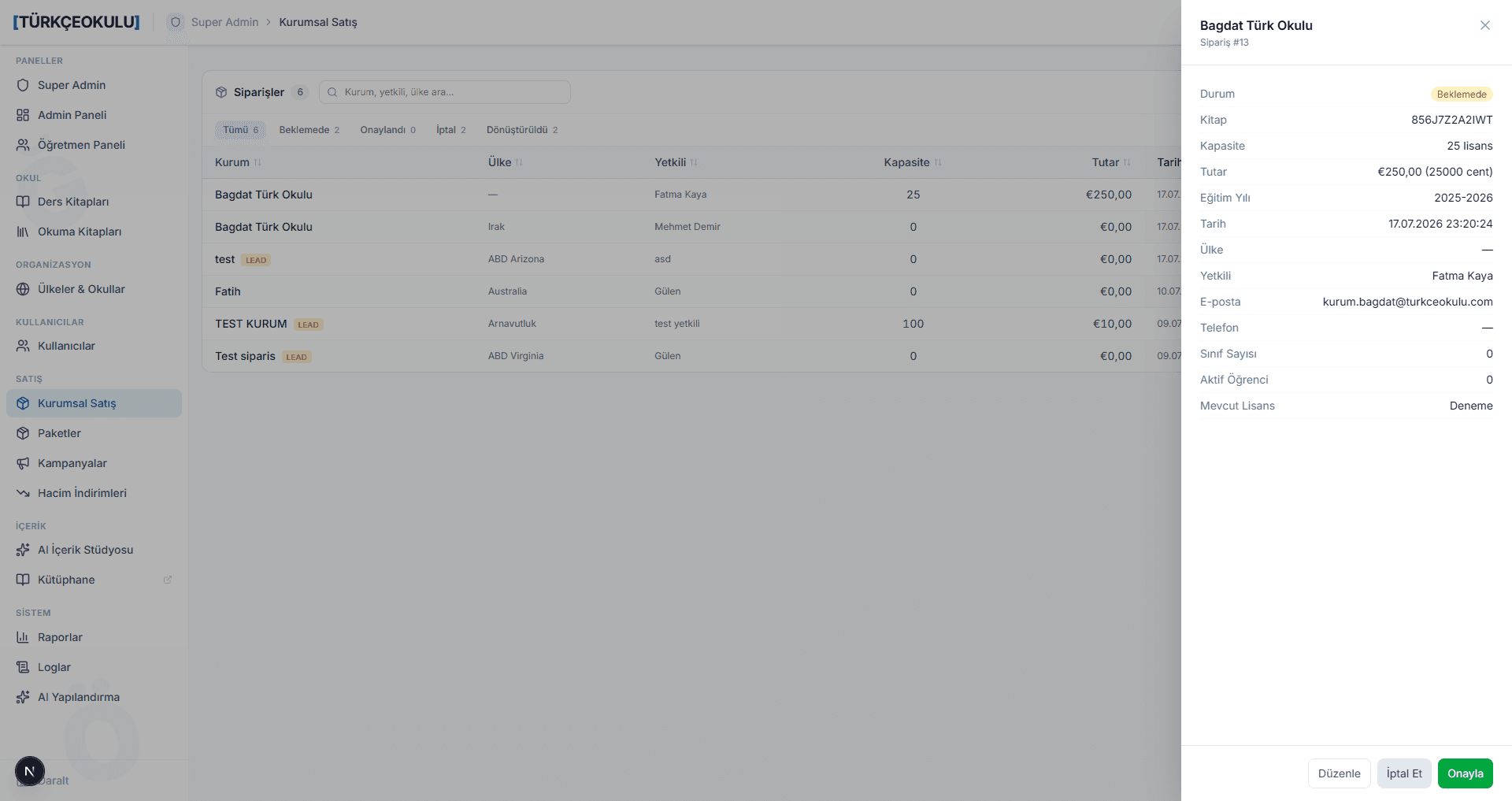
Add a Class
Opening a new class from the teacher panel and getting students to join takes a few minutes.
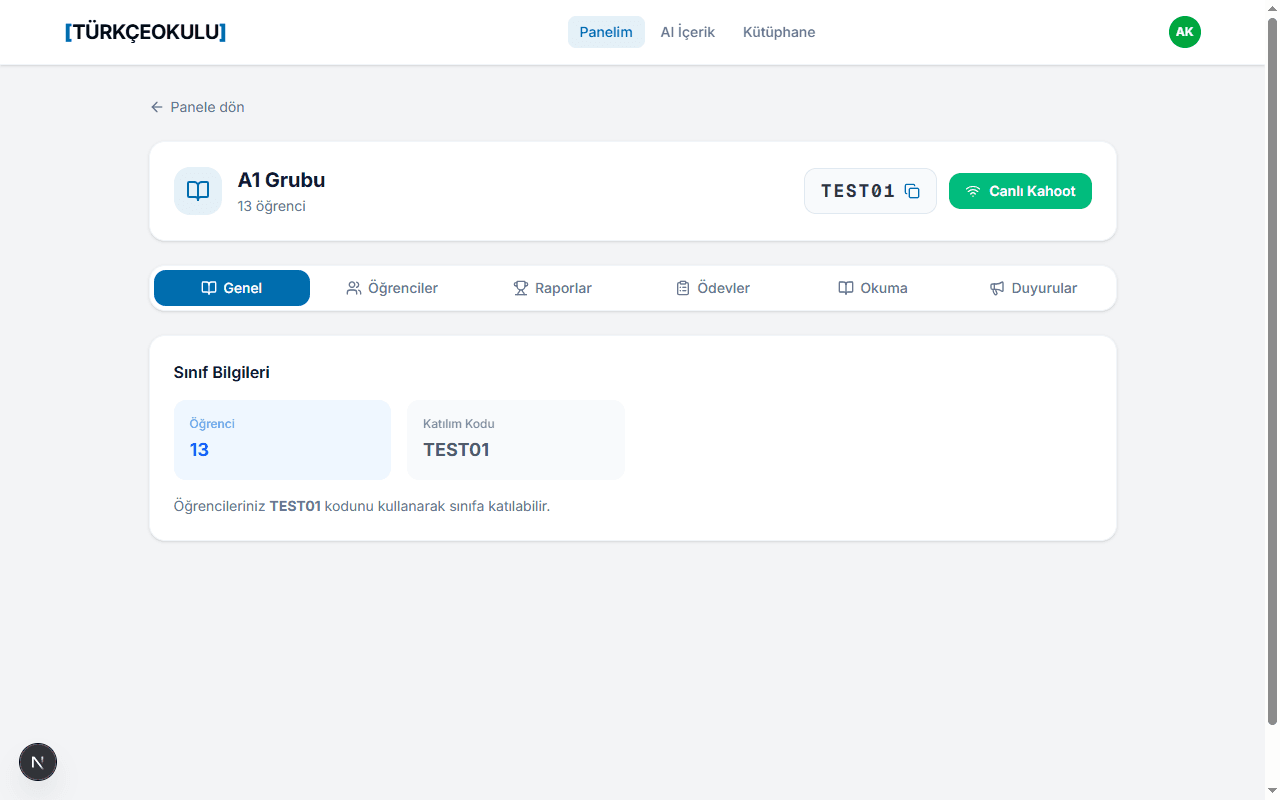
Dashboard → "New Class" → enter a class name and pick a textbook (required).
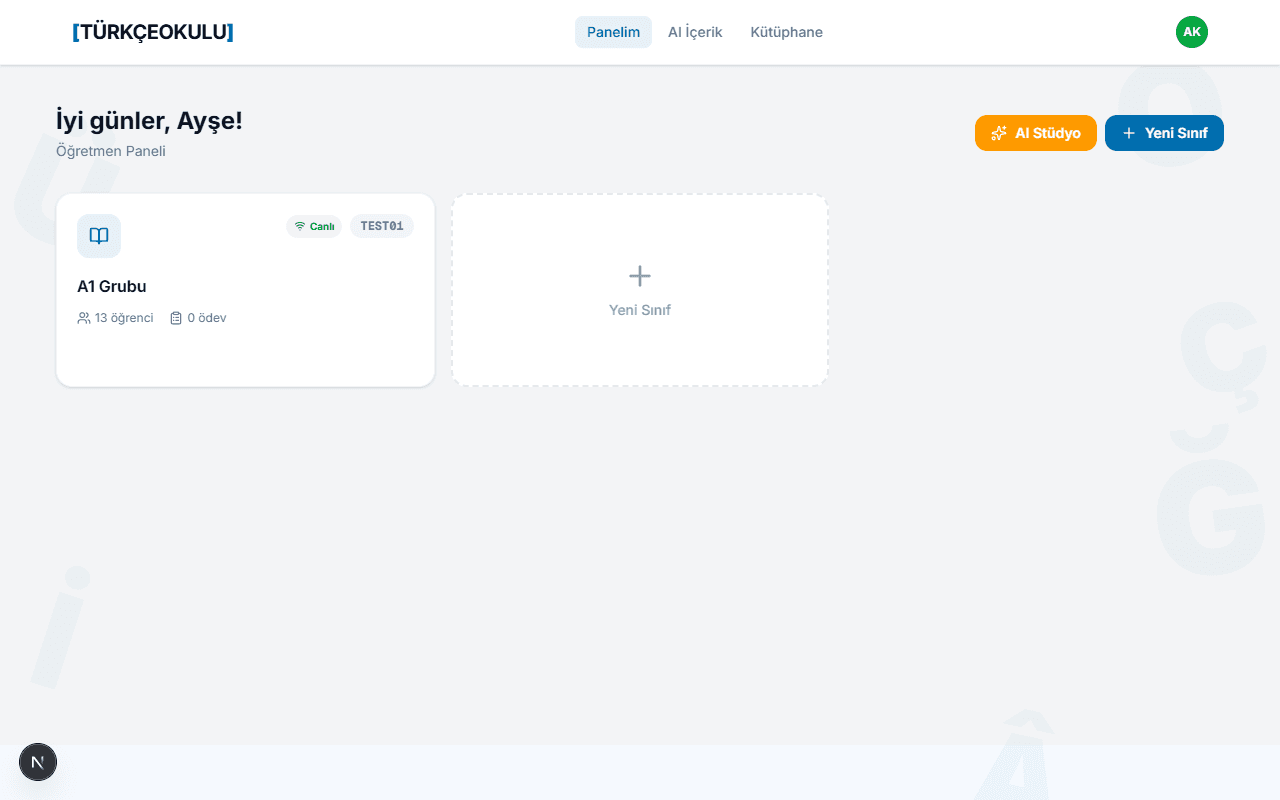
Open the class from its card — the join code (e.g. TEST01) and a copy button appear at the top of the page.
Students tab → "Join via QR" — a large QR code and the join code open in a modal.
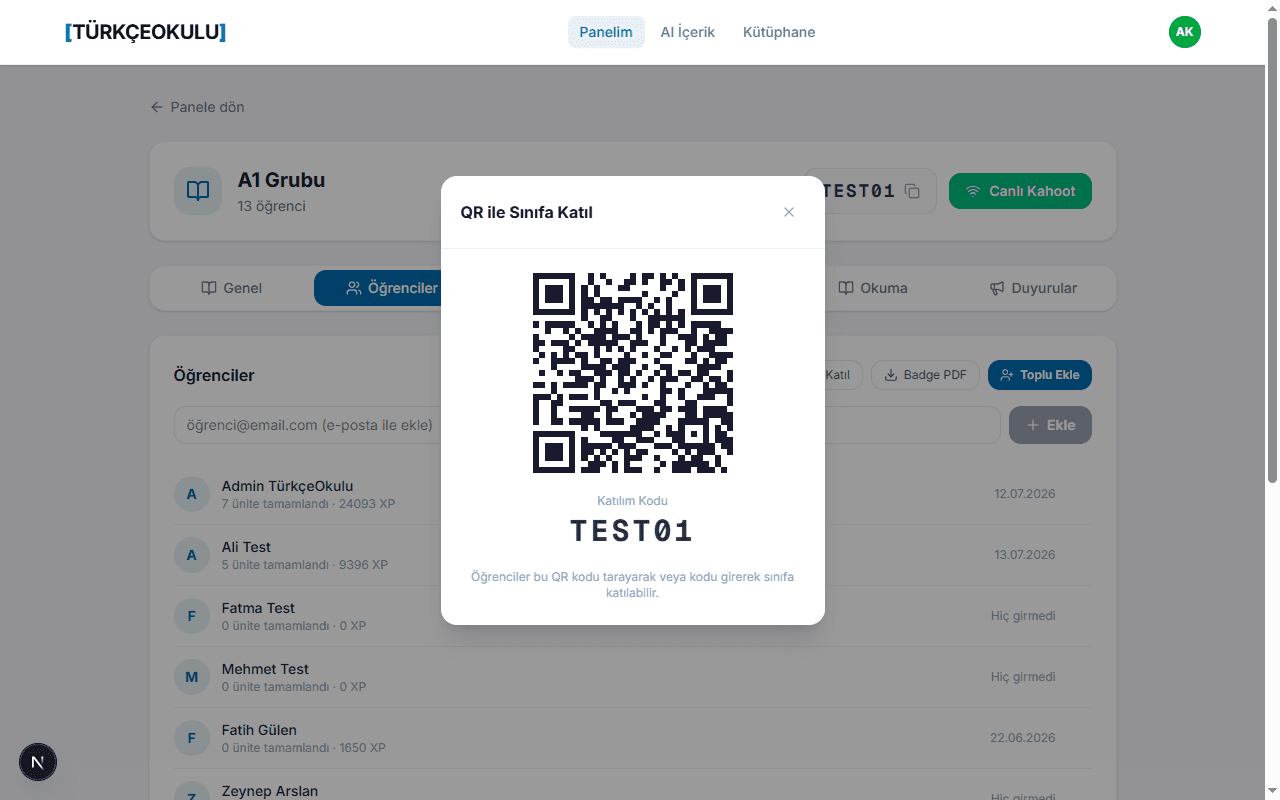
Students scan the QR code with their phone camera, or enter the join code at turkceokulu.com/sinif/katil.
Live Kahoot Quiz
Project the class screen on a board or projector, and let students join from their own devices.
- 1
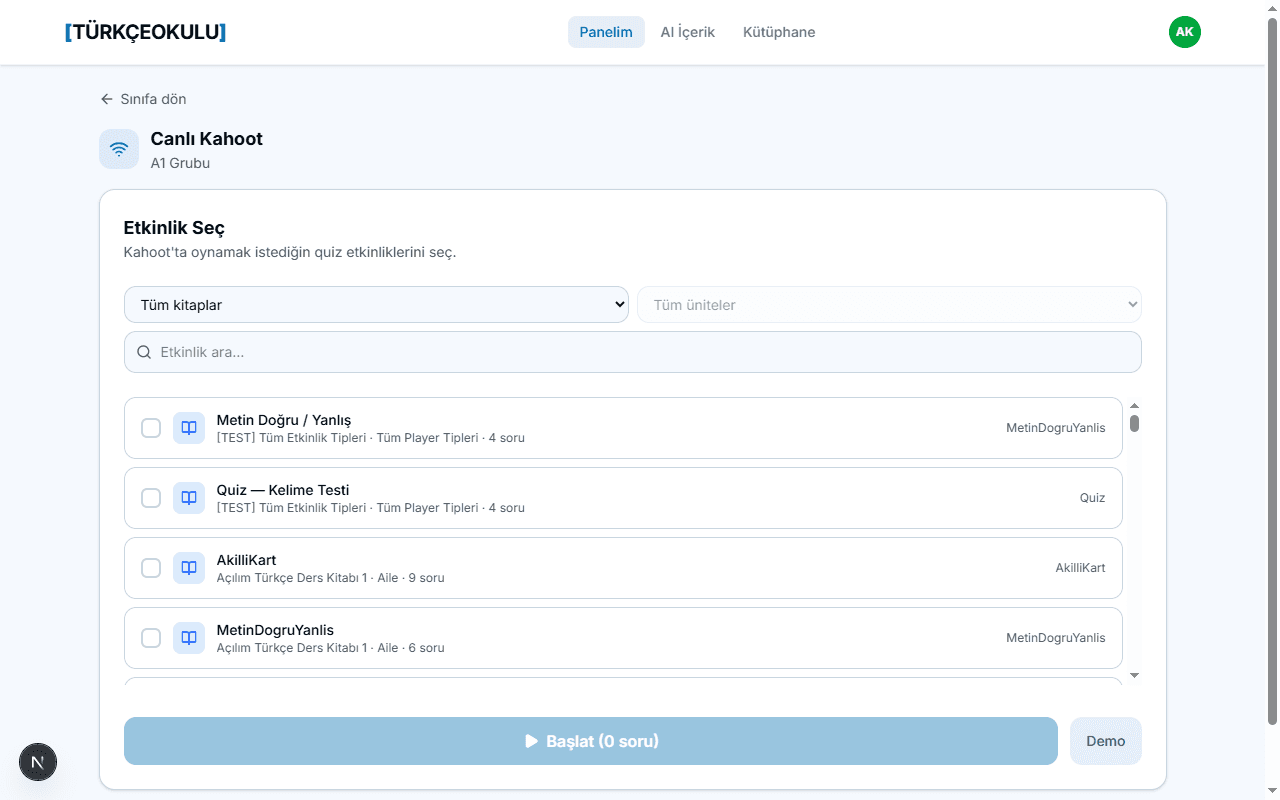
Click "Live Kahoot" on the class page.
- 2
Use "Select Activities" with the book/unit filter and search to multi-select quiz activities.
- 3
Click "Start (N questions)" to open the live session — or try "Demo" first.
- 4
Students join from their own device; questions appear in sync, and the live leaderboard updates with a speed-based score bonus.
Progress Report
See each class's progress broken down by unit, and download it as Excel if you like.
- 1
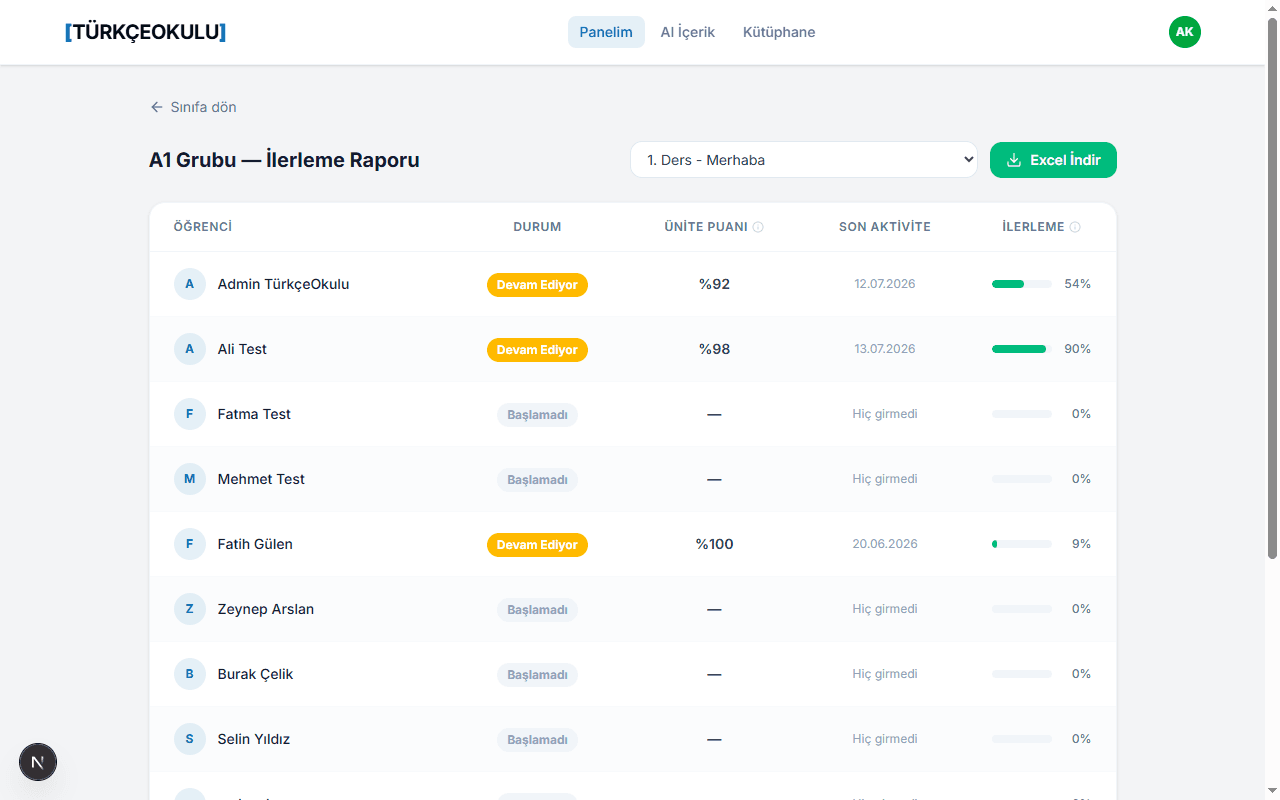
Open the Reports tab inside a class.
- 2
Pick a unit from the unit dropdown.
- 3
Review the Status badges (Completed / In Progress / Not Started), Unit Score (success rate on attempted activities) and Progress (coverage percentage) columns.
- 4
Click "Download Excel" to export the same table with the same columns.
Generate a new quiz in 30 seconds
Spotted a weak unit in the reports? Pick one of the Quiz, Matching, Fill-in-the-Blank or Worksheet tabs in AI Studio, set the source unit, target class and CEFR level, and generate new material in seconds.
Explore AI Studio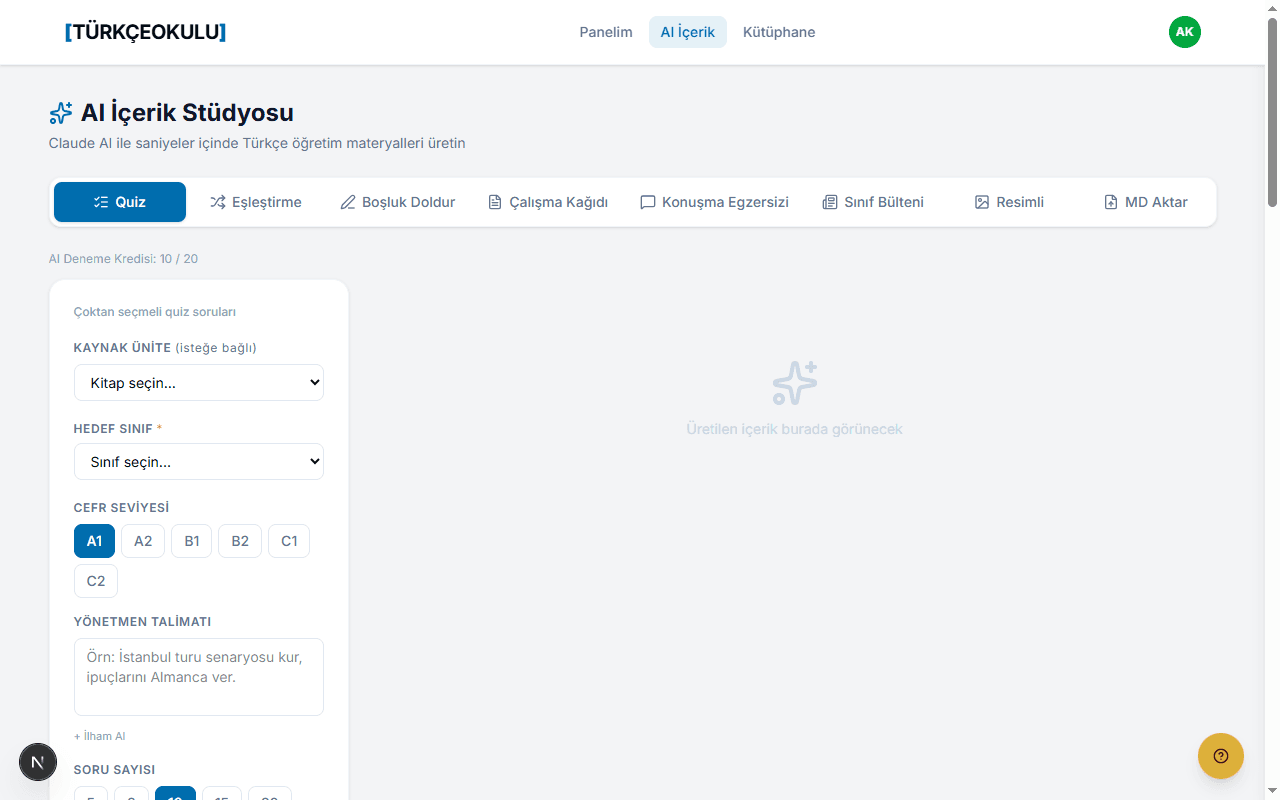
Set up your class today
Open a free account in 5 minutes and add students to your first class.
Start Free